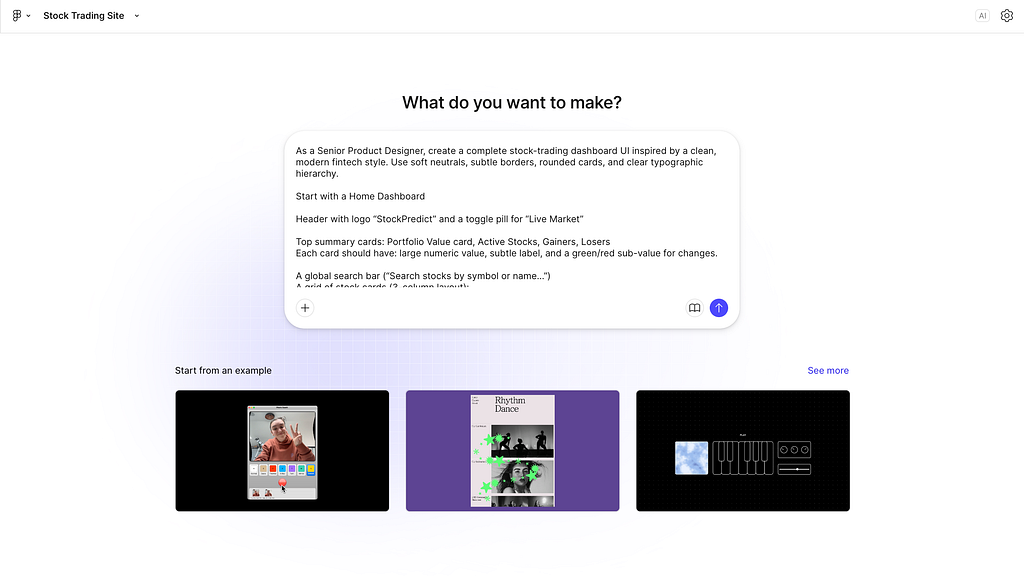
Imagine rolling into the office (or your kitchen table) after 8PM and finding that Figma has already sketched out your entire new dashabord. All you did was provide a one-line prompt before crashing. It sounds like magic, but for many designers, Figma’s AI features (like Figma Make) feel more like a rollercoaster than a magic carpet ride. Some teams swear by them, while others report “existential angst” as their morning prototype output looks suspiciously generic. In late 2025, 71% of UX pros say AI/ML is the trend of the year, yet only 19% of assistive-tech users trust AI outputs. That trust gap matters.
So what’s real and what’s hype? I dove into community forums (r/FigmaDesign is in uproar) and Figma’s own docs to separate fact from fable.
10 Ways Figma AI & Make Save You Time
- Blast Past Blank Pages
Staring at a blank canvas? Figma Make can conjure first-draft layouts from text prompts in seconds. For example, describe “a mobile onboarding screen for a med-tech app” and Make spits out a wireframe with header, body, and buttons. This “jump-start” bypasses the blank-page paralysis.
AI helps ideation, generating quick sketch ideas that you can refine. (Just be ready to tailor the result!)
2. Find Components Faster
Figma’s new AI-powered Search (visual and semantic asset search) means you can type “primary button” or even upload a screenshot, and Figma will sniff out matching components from your files. No more digging through hundreds of layers. As stated by one of the designer’s, “Search is the perfect example of how AI can pragmatically solve real pain points designers face every day”.
Spend seconds finding the exact icon or frame you need, instead of minutes.
3. Auto-Prototype with One Click
The “Make Prototype” button can turn static frames into a clickable prototype instantly. Suddenly your wireframes come alive as an interactive demo. Ideal for quick feedback or stakeholder buy-in.
AI slashes prototype-building time. (Downside: the interactions are basic, so you’ll still tune transitions manually.)
4. Generate Realistic Content
Tired of lorem ipsum/writing content? Figma AI can auto-fill text and images that fit your design context. It tailors menu items, article headlines, or product descriptions to your frame. It can even remove image backgrounds in a click. As Figma notes say, “AI-powered content generation… helps you quickly populate your designs with relevant, realistic content”.
Your mockups feel polished faster, without hunting down photos or copy. (Just verify that the generated content actually makes sense!)
5. Rewrite and Translate Copy
Need to tighten that button label or rewrite a paragraph? Figma’s AI text tools let you translate, shorten, or rewrite any text right in the editor. One of the designer states this “automate’s busywork and explore’s high-fidelity ideas faster”.
Content iterations (changing tone, reducing copy, etc.) go from minutes to seconds. (Just check tone and facts; AI isn’t always context-perfect.)
6. Organize in a Flash
Keeping layers organized is tedious, but AI can auto-rename layers for you. Figma’s “Rename Layers” feature smartly labels group and layer names based on content. This can save hours of grunt work.
Your file is tidy & dev-ready without manual housecleaning. (Occasionally it mis-names something, so a quick scan is wise.)
7. Keep Your Style in Check
Worried AI will violate your design system? Paste in real components from your library as references before prompting Figma Make. If you use your own buttons or cards as a hint, “Figma Make can match its style and spacing… effectively following your design system rules without needing additional explanation”.
AI drafts can inherit your brand look if you prime it right. (This is a pro tip, it’s easy to forget to paste them, but it’s powerful when you do.)
8. Tweak Quickly with Point & Click
After AI generates a layout, the Point-and-Edit tool lets you make on-the-fly tweaks (change a color, swap an icon, adjust spacing) by clicking the element and editing it. It’s like Figma’s version of a “spot fix” wand.
Small design changes happen instantly, no need to reconstruct frames. (Of course, bigger fixes still require design skill.)
9. Smart Code Handoff Starter
Figma Make can even spit out starter code. For example, it can isolate a component (like “Move Big Ben into its own file”) and give you HTML/CSS/JS for it. This gives developers a foundation to tweak.
Developers get something to start with, shaving off the boilerplate. (Warning: the code isn’t production-grade, think “outline code” rather than ship-ready code.)
10. Simulate Real Data
Need a weather API feed or live stock tickers in your prototype? Figma Make lets you plug in fake or mock data prompts to populate fields. You could prompt, “Show New York weather” and it fabricates realistic values.
You can demo data-driven UIs without backend work. (Be cautious: if you try to hook real APIs in prompts, it can expose secrets, so usually you simulate it.)
Playbook Tool
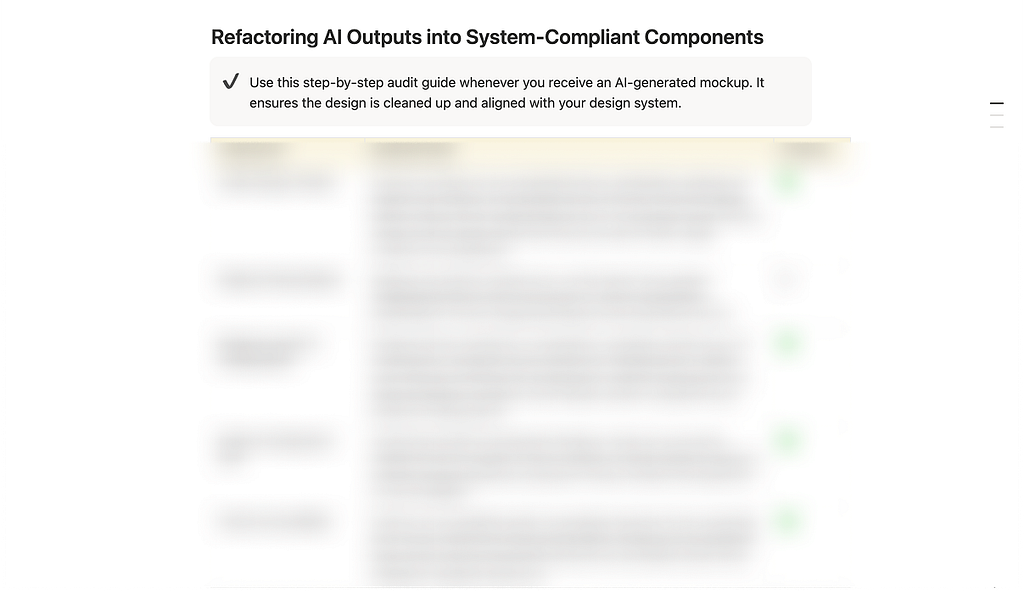
A Notion checklist, “Refactoring AI Outputs into System-Compliant Components,” to help you take those AI-generated drafts and align them with your brand and tokens.
10 Ways Figma AI & Make Create Friction
- Generic, Bland Results
All that speed can cost soul. Many designers find AI prototypes “generic and bland”, perfectly serviceable but missing the nuance of a crafted design. In community threads, folks describe Figma Make output as “bland web prototypes” with little artistic
The first draft is likely unremarkable. Be ready to instill personality or it will feel like every app using it looks eerily similar.
2. Design-System Disconnect
If you forget the trick above, AI often ignores your spacing tokens, fonts, and color themes. What comes out may violate your style guide. Designers report that AI layouts “fail to integrate with established design systems, leading to rework”. In practice, this means developers might scrap the AI screen and rebuild it from scratch.
Time saved on prototyping can be lost to “clean-up” later. Always double-check every component against your system. We even have a Notion checklist for that!
3. Accessibility Headaches
Never trust an AI’s accessibility intuition. Figma’s content generator might pop in images without alt text or buttons with no labels. Given that only 19% of assistive-tech users trust AI today, you must manually audit contrast, labels, and tab order.
AI can’t guarantee compliance. In fact, it often overshoots or undershoots. Treat its output as a draft and run your usual accessibility checklist afterwards.
4. Hallucinated or Off-Brand Copy
AI content is only “realistic”, It’s not truly accurate. It may fabricate facts, awkward phrasing, or the wrong voice. For example, ask it to fill in a product feature list and it might invent believable but false features.
Always fact-check and brand-check the copy. The 5-minute “time saver” can turn into 30 minutes fixing a weird tagline that somehow appeared.
5. Unhelpful Image Choices
When generating or selecting images, AI can go astray. It might produce a gratuitous photo (e.g. a stock cityscape in an onboarding screen for a finance app).
Images often need human judgment. Don’t let “reasonable” placeholders slip into final deliverables without a hard look. Also watch for (sometimes hilarious) content mix-ups. I once saw a prompted “restaurant app screen” filled with random recipe images!
6. Shaky Prototyping Logic
The one-click prototype is great for demos, but it can also lull you into false security. Complex flows (if/else screens, validation states, etc.) generally need hand-crafting. The AI-generated interactivity may not cover edge cases or real user behavior.
Use AI prototype as a sketch, but don’t skip user testing. If you hand this to users without oversight, gaps will appear.
7. Version and Ownership Chaos
With great power comes many versions. Figma Make encourages experimenting with multiple prompts (“Give me three layouts for this feature…”), but that can lead to dozens of frames. Teams report confusion over which AI iteration to use or merge.
Keep your file organized. Label AI-generated drafts clearly and merge them responsibly, or you’ll end up like an earlier generation of Google Docs: one big “untitled copy 23.”
8. Security/Privacy Slip-ups
Remember, anything you type to an AI prompt could be logged. If you paste proprietary UI flows, there’s a (small) chance that confidential info is exposed to the service. Be careful prompting with secret data (client logos, passwords, protected APIs). The Figma docs even advise caution about plugging third-party APIs via prompts.
In short: treat AI like Slack, don’t share top-secret stuff.
9. Skill Atrophy Risk
There’s a human element: some designers feel “out of practice” when machines handle routine tasks. Community sentiment is rife with “role anxiety”, as designers wonder if their craft is being commoditized.
Don’t let the tool do all the thinking. Use each AI draft as an opportunity to flex your editorial muscles. Consider it homework, not homework done by your teacher. Designers should still do the critique and refinement.
10. Over-Reliance & Miscommunication
Finally, introducing AI into a team can create friction. A developer might think, “Great, AI made the screen, time to code!”. Only to discover the prototype needs redesign or a product manager might misinterpret a rough AI mock as “done”.
Set clear expectations. Communicate that AI outputs are initial drafts. We even suggest teams write an “AI usage policy” so everyone understands the workflow. (See our templates below!)
Designer POV Craft vs Automation.
Many designers are torn. On one hand, AI can churn out 3 “good enough” versions of a screen in the time it takes to sketch one. On the other, your expertise still matters. Designers are morphing into editors and curators of AI work, focusing on strategic vision and quality, while machines handle rote tasks. In fact, best practices now emphasize an iterative
Generate → Critique → Refine loop
Generate drafts with AI, then apply your critical eye: align elements to the brand, catch missing details, inject creativity. Repeat. This human-in-the-loop approach plays to our strengths. AI can riff on patterns, but only you know the intent behind the design. Embrace AI where it boosts you, and double down on skills it can’t touch like storytelling, user empathy, and strategic thinking.
A Simple AI Workflow Framework
To stay in control, adopt this Generate → Critique → Refine cycle as your new workflow mantra
- Generate
Start with a clear prompt or input for Figma AI/Make. (Example: “Create a 5-screen flow for onboarding with a chatbot.”) Let AI output one or more drafts quickly. - Critique
Review every draft as a team. Check against your design system, brand voice, and usability standards. Ask: What’s missing? What’s off-brand? Where are potential accessibility issues? Use our Refactoring AI Output checklist for guidance. - Refine
Adjust the AI result manually. Swap in the correct components, tweak colors and typography, rewrite the copy. Add human touches that AI missed. - Repeat
Don’t expect perfection the first time. Prompt again if needed, or mix drafts. Each cycle should get you closer to a polished design.
This loop ensures human oversight, which Figma’s own docs and UX research say is crucial. Think of AI as your junior team member who handles grunt work and you still have to review and guide it.
Resources
- Refactoring AI Outputs into System-Compliant Components to help you take those AI-generated drafts and align them with your brand and token.
- Figma AI Scorecard comparing where AI helps and where it hurts. Use it as a reality check.
- AI Communication Template for clear guidelines, messaging, and internal policies for teams integrating AI into their design workflows.
No, AI Isn’t Stealing Your Job (Yet)
At the end of the day, Figma AI/Make is a tool, not a magic wand. The craft and intuition that designers bring still matter more than ever. If AI feels like riding a bicycle downhill with no brakes, remember you have the brake pedal. Stay curious but critical. Use AI to eliminate the gruntwork, not the artistry. As one industry analysis states, designers are shifting into the role of “editors and critics” of AI output. Focus on skills no bot can replicate storytelling, empathy, strategic vision. By governing the AI (and not the other way around), you ensure that every pixel still feels human.
Ready to Level Up?
Give Figma AI/Make a spin in your next project and run through the workflows above. Track your wins and fails, and adjust your process.
Stay ahead of the curve
Download my Notion checklist, bookmark this page, and check back as I add more resources. Whether AI is your trusty apprentice or a mischievous goblin, remember you’re the designer in charge.
Figma AI & Make: 10 Workflows That Save Time and 10 That Set You Back was originally published in Bootcamp on Medium, where people are continuing the conversation by highlighting and responding to this story.